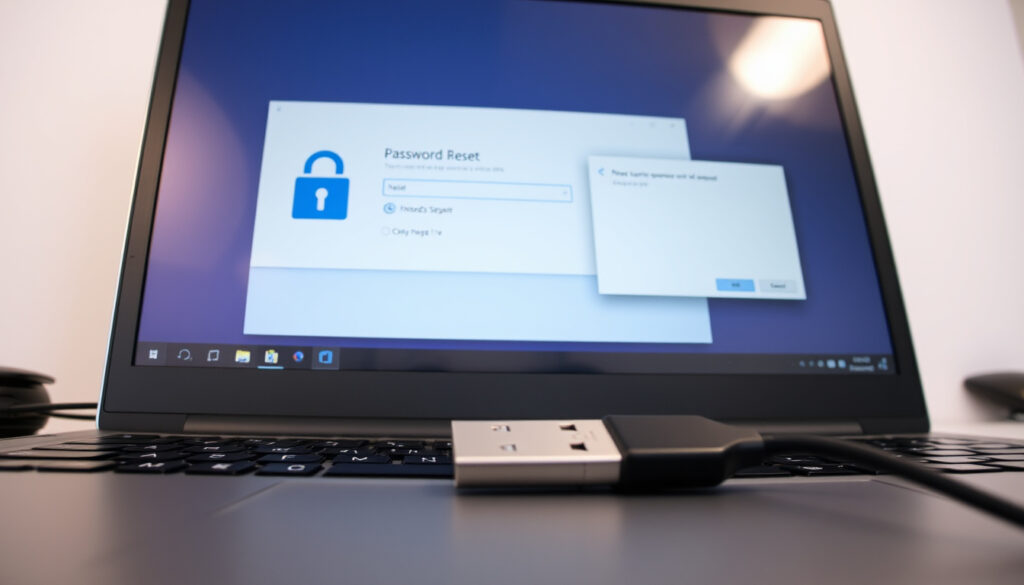
How to Reset Windows Password: Step-by-Step for Windows 10/11
Forgetting your Windows password is frustrating, but recovery is possible without a repair shop or system wipe. This guide walks through every practical method, separating official routes from risky shortcuts.
Most common password reset method: Microsoft account online password reset ·
Local account recovery methods: Password reset disk or installation media ·
Third-party tools availability: Non-official, security risk
Quick snapshot
- Microsoft account password can be reset online at any time (Microsoft Support)
- Local account password can be reset via installation media and Command Prompt (Microsoft Q&A)
- Password reset disks exist only for local accounts, not Microsoft accounts (Microsoft Support)
- Third-party tools safety is unverified and may contain malware
- Impact of password reset on BitLocker-encrypted drives is not guaranteed
- Long-term reliability of offline command-prompt resets on Windows 11
- Microsoft Support last updated its forgotten password article on July 25, 2026 (Microsoft Support)
- Dell published its Windows password recovery support article in March 2026 (Dell Support)
- Microsoft Support updated its in-Windows password reset guide on August 11, 2026 (Microsoft Support)
- Users without recovery options should create a password reset disk after regaining access
- Microsoft continues to push Microsoft account sign-in, reducing local account recovery paths
- Windows 11 updates may further restrict offline command-prompt password resets
The pattern is clear: your recovery options depend entirely on account type.
| Label | Value |
|---|---|
| Official Microsoft support | Yes, via account.microsoft.com |
| Reset without login | Possible via installation media |
| Password reset disk | Creatable in advance |
How do I unlock Windows if I forgot my password?
Unlock by resetting Microsoft account password online
If you use a Microsoft account to sign into Windows, the quickest path is through any browser. Go to Microsoft Support (official account recovery page) and select “Forgot password?” The system will ask you to verify your identity — typically through a recovery email or phone number linked to your account. After verification, you set a new password, and Windows syncs it automatically the next time you sign in.
The same Microsoft Support (in-Windows reset guidance) applies if you’re on the lock screen: click “I forgot my password” or use the “Sign-in options” link to trigger browser-based recovery. According to Microsoft Q&A (technical support forum), after resetting the Microsoft account password, you can also change or reset your Windows Hello PIN.
Microsoft account users are one browser tab away from recovery. The trade-off: you need a separate device or a recovery contact to complete verification.
Unlock using another administrator account
If another user account on the same PC has administrator privileges, you can reset your password from that account without any extra tools. Open Computer Management (right-click Start, select “Computer Management”), navigate to Local Users and Groups, right-click your account, and select “Set Password.” Microsoft Q&A (official technical community) confirms this method works for local accounts and does not require the target account’s old password.
The catch: you need a second admin account already set up. Most personal computers have only one admin account, so this method works mainly for shared or work devices.
Unlock via password reset disk
For local accounts only, a password reset disk — usually a USB flash drive created in advance — can unlock the PC without any online connection. Microsoft Support (identity and sign-in documentation) explains that creating the disk requires you to be signed into the local account and have a USB drive plugged in. The process runs through Control Panel’s “Create a password reset disk” wizard.
When you’re locked out, insert the USB drive on the login screen, click “Reset password,” and follow the wizard. Microsoft Support (same documentation) notes this only works if the disk was created before the password was forgotten — no retroactive creation.
The pattern: planning ahead saves the headache. But if no disk exists, this door is closed.
How to recover Windows 10 password
For Windows 10, the same principles apply. Microsoft account users reset online. Local account users can use a password reset disk, another admin account, or boot from installation media. The Microsoft Support page covers both Windows 10 and 11.
How to recover Windows 11 password
Windows 11 follows the same recovery paths. The key difference: Microsoft Support notes that Windows 11 may restrict offline command-prompt resets in future updates. Plan ahead with a password reset disk or PIN.
Can I reset my PC if I forgot my password?
Resetting PC without password via recovery mode
Yes — booting from installation media bypasses the login screen entirely. Insert a Windows installation USB or DVD, restart the PC, and boot from the media. On the first screen, select your language and click “Repair your computer” (bottom-left corner). This loads the Advanced Startup Options menu, where you can choose “Troubleshoot” and then “Reset this PC.”
Microsoft Q&A (answers forum) confirms this as the documented fallback when no password reset options exist and no other admin account is available. The reset option gives you the choice to “Keep my files” or “Remove everything.”
Using installation media to reset PC
When you select “Reset this PC” from Advanced Startup Options, Windows reinstaller takes over. If you choose “Keep my files,” it removes apps and settings but retains personal files in your user folder. If you choose “Remove everything,” the drive is wiped clean — useful if you are selling the PC, but destructive if you wanted to preserve data.
Dell Support (OEM guidance) published its own walkthrough in March 2026, noting that OEMs still document both Microsoft-account and local-account recovery paths. Their advice: back up data regularly so a forced reset doesn’t mean data loss.
Hardware manufacturers like Dell confirm that OEMs expect users to run into password lockouts — and the official reset path still removes installed programs, even when “Keep my files” is selected.
What happens to files when resetting PC
The “Keep my files” option preserves documents, photos, and desktop files. But it deletes all installed programs, drivers (except those bundled with Windows), and personalization settings. After the reset, you’ll have a fresh Windows install with your files intact but no applications. You will need to reinstall every program manually.
If the drive is BitLocker-encrypted — common on modern Windows 11 PCs — the reset process may require a recovery key. Without the key, the drive remains locked, and data recovery becomes uncertain.
How to reset Windows password without login?
Resetting password using command prompt from installation media
This is the most widely documented offline method. Boot from Windows installation media, and on the setup screen press Shift + F10 to open Command Prompt. Type net user [username] [newpassword] — for example, net user John P@ssword123 — and press Enter. If you don’t know the exact username, type net user to list all accounts.
- Boot from Windows installation USB or DVD.
- On the language selection screen, press Shift + F10 to open Command Prompt.
- Type
net userto list all user accounts. - Type
net user [username] [newpassword]and press Enter. - Close Command Prompt and restart the PC.
- Log in with the new password.
Microsoft Q&A (official answers forum) confirms this method works on local accounts in both Windows 10 and Windows 11. However, the Command Prompt in this context runs as part of the Windows Preinstallation Environment, not your installed copy, so system policies or BitLocker may block the change.
Using third-party password reset tools
Several bootable USB tools — such as Ophcrack, PCUnlocker, or NTpasswd — claim to reset Windows passwords by overwriting the SAM registry hive. These tools work offline, bypassing the normal login flow entirely. The trade-off: Microsoft Q&A (community answers) does not endorse any third-party tool, and security researchers warn that such tools can be repackaged with malware. There is no independent verification of their safety on modern Windows 11 systems with secure boot enabled.
For users who are locked out with no other options, third-party tools represent a last-resort gamble. The consequence: you may regain access, but you risk data corruption, malware infection, or voiding your device’s warranty. Dell’s support article does not recommend any third-party tools either.
Resetting through Safe Mode with Command Prompt
Safe Mode with Command Prompt theoretically allows an administrator to reset passwords without installation media — but it requires knowing the password of another administrator account. At the sign-in screen, hold Shift while clicking the Power icon and selecting Restart. Then navigate to Troubleshoot > Advanced Options > Startup Settings > Restart, and press 6 to enable Safe Mode with Command Prompt.
In Safe Mode, type net user [username] [newpassword]. The limitation: if all accounts are locked, Safe Mode does not help — you still need one accessible admin account. Microsoft Tech Community (Windows 10 discussion forum) lists this alongside the other two common recovery routes: Microsoft account recovery and password reset disk.
How do you open a PC when you forgot the password?
Using password reset disk
If you prepared in advance, insert the USB password reset disk at the lock screen. Windows will display a “Reset password” link after an incorrect login attempt. Click it, plug in the USB, and the Password Reset Wizard walks you through setting a new password. Microsoft Support (creation and usage documentation) states this process works only for local accounts — Microsoft accounts cannot use a password reset disk.
This is the most reliable offline recovery method, but its prerequirement (creating the disk while still logged in) means most users never have one available at the moment of lockout.
Bypassing password with default administrator account
The built-in Administrator account exists on every Windows system, but it is disabled by default. Attempting to enable it from the login screen requires an existing admin account — which is the account you are locked out of. Microsoft Q&A (technical answers) clarifies that this method is not accessible when no admin accounts are active.
The built-in Administrator account can be enabled from Safe Mode only if another admin password is known, or from installation media using Command Prompt. Without either, the account remains locked.
Using recovery console
The recovery console — accessible from Windows installation media — gives you a command-line interface without logging into the installed OS. Once booted from media, press Shift + F10 at the language selection screen. The same net user commands work here. Microsoft Tech Community (Windows Insider forum) describes how Microsoft account password resets can be done from another device and synced back, while local accounts require the Command Prompt approach with physical access to the machine.
How to unlock PC when forgot password without reset?
Using Windows Hello or PIN as alternative
If you set up Windows Hello (facial recognition, fingerprint, or a PIN) before forgetting your password, you can still use it to sign in. The lock screen shows the Windows Hello icon below the password field. Tap or click it to switch to biometric or PIN sign-in. Microsoft Q&A (answer forum) notes that the PIN is tied to the device’s TPM (Trusted Platform Module), so it works offline and survives password changes on connected Microsoft accounts.
If you never set up Windows Hello, this door does not open. But it highlights a practical takeaway: enable a PIN or biometric unlock as a backup before you lock yourself out.
Using password hint
After one incorrect password attempt, Windows displays the password hint you set during account creation. The hint appears below the password field in the lock screen. For many users, the hint is enough to jog their memory. Microsoft Q&A (Windows 11 answer forum) confirms that the sign-in screen’s “Reset password” option for local accounts appears after a failed login attempt, triggering the hint display.
The catch: if you set a vague hint (“my favorite thing”) or a hint in a different language, it may not help. And hints are only available for local accounts — Microsoft accounts do not show a hint on the lock screen.
Signing in with a different account
If the PC has multiple user accounts, try signing in with another one. Even a standard (non-admin) user account can access the desktop, though you will be limited in what you can change. If that other account happens to be an admin, you can reset your own password from within Windows using Computer Management or the Settings app.
Microsoft Tech Community (Windows 10 discussion) lists this as one of three common recovery routes: “another administrator account” sits alongside Microsoft account recovery and password reset disks. In practice, shared home machines or workstations with multiple accounts benefit most from this path.
If you’re locked out and need professional help, consider a laptop repair service for safe recovery. For other common Windows issues, see our guide on how to stop apps from crashing.
Expert perspective (quotes)
You can change or reset your Microsoft account password online from any device.
Microsoft Support (official documentation)
Creating a password reset disk requires being signed in with the local account, plugging in a USB flash drive, and using Control Panel to create the disk.
Microsoft Support (identity and sign-in documentation)
Security questions are answered on the sign-in screen after selecting Reset password, then a new password can be set.
Microsoft Q&A (Windows 11 community forum)
The sign-in screen Reset password option for local accounts appears after a failed login attempt.
Microsoft Q&A (community forum)
Summary
Windows password recovery is not a single process — it is a decision tree with three branches. Microsoft account users have the clearest path: reset online from any device. Local account users face steeper choices, from password reset disks (if prepared) to installation media Command Prompt (if not). Third-party tools exist but carry real risk: unverified software, potential malware, and no manufacturer support. For the user locked out without a backup phone, a secondary account, or a prepared disk, the only guaranteed route is a full PC reset — which means reinstalling everything. You should enable a Microsoft account, set up Windows Hello PIN, and create a password reset disk while you still have access. Or accept that a forgotten password may cost you time, data, or both.
support.microsoft.com, learn.microsoft.com, itarian.com, learn.microsoft.com, imypass.com, learn.microsoft.com
Frequently asked questions
What is the best method to reset Windows password?
The best method depends on your account type. For Microsoft accounts, resetting online via account.microsoft.com is fastest and most secure. For local accounts, a password reset disk (if created in advance) is the most reliable. Without preparation, installation media and Command Prompt are the only official options.
Can I reset my Windows password without losing data?
Yes for Microsoft accounts — password reset online does not affect files. For local accounts, using Command Prompt from installation media changes the password without deleting files. A full PC reset, however, may remove installed programs even when “Keep my files” is selected.
How long does it take to reset Windows password?
Online reset for Microsoft accounts takes 5–10 minutes including identity verification. Command Prompt method via installation media takes 10–15 minutes. A full PC reset can take 30–60 minutes depending on storage size.
Is it safe to use third-party password reset tools?
Third-party tools carry unverified security risks. They are not endorsed by Microsoft or any major OEM like Dell. Using them may expose your system to malware, violate warranty terms, and is not guaranteed to work with BitLocker-encrypted drives.
What if I don’t have a recovery email for my Microsoft account?
Without a verified recovery email or phone number, online password reset is blocked. You will need to use the Windows recovery options (installation media, password reset disk, or PC reset). Microsoft recommends adding recovery information immediately upon regaining access.
Can I use command prompt to reset password without installation media?
Not directly from the lock screen. Command Prompt access requires booting from external media or entering Safe Mode — which itself requires another accessible admin account. The net user command is most effective from installation media.
Will resetting password affect my files?
Changing the password via Microsoft account or Command Prompt leaves files untouched. A PC reset removes all installed programs. BitLocker-encrypted drives require a recovery key; without it, data may become permanently inaccessible.
More related posts
 Subsistence Rates Ireland 2025: Civil Service Guide
 Is Ozzy Osbourne Dead? Cause of Death and Final Days
 BBC Football Fixtures Today: Matches on TV & Live Streams
 Ireland Asylum Seekers Ruling: Court Decisions & Law Changes
 USD to EUR Exchange Rate: Live Converter and History
 Southampton vs Man City: FA Cup TV, Prediction & Head-to-Head
 Top of the Rock Cork: Pod Páirc & Camping Laws
 Ford Focus for Sale Cork: Used Prices & Dealers
