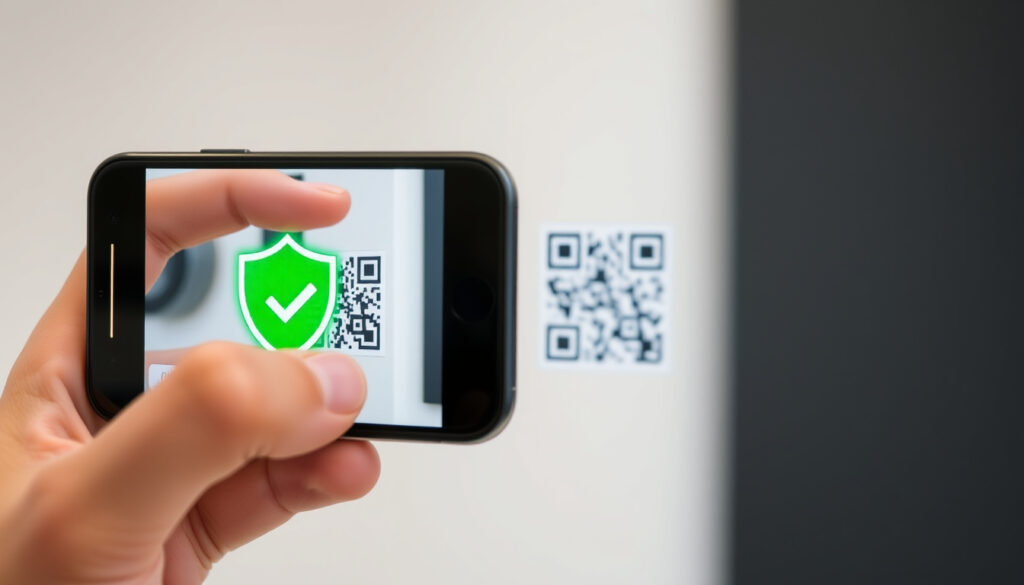
How to Scan a QR Code: Phone, Online & Safety
Have you ever stared at a QR code, wondering if you need a special app to unlock what’s inside? You’re not alone. This guide shows you how to scan a QR code on your iPhone, Android phone, or even online without installing anything — and explains the safety tips that keep your data safe along the way.
iPhone built-in scanning: iOS 11 (2017) · Android built-in scanning: Android 8.0 (2017) · Global QR code payment volume (2023): $2.4 trillion
Quick snapshot
- Open Control Center, tap Scan Code (Apple Support)
- Point camera at QR code (Apple Support)
- Tap the notification link (Apple Support)
- Go to scanqr.org (scanqr.org)
- Upload image or paste screenshot (scanqr.org)
- Click the extracted link (scanqr.org)
- Open Photos / Gallery app (Apple Support)
- Tap the QR code image (Apple Support)
- Tap the link that appears (Apple Support)
How do I scan a QR code with my phone?
How to scan on iPhone
- Open the Camera app on your iPhone. (Apple Support)
- Point the rear camera at the QR code so it appears inside the viewfinder.
- A notification banner with the decoded link appears at the top of the screen. Tap it to open the website, app, or content.
You can also enable the Code Scanner from Control Center for quick access. Go to Settings > Control Center and add the QR code scanner icon.
How to scan on Android
- Swipe down from the top of your screen to open Quick Settings. Look for the QR scanner icon and tap it. (UK National Cyber Security Centre)
- Alternatively, open the Camera app and point it at the QR code. Most Android phones automatically detect the code and show a link.
- Tap the link that appears to proceed.
On phones running Android 8.0 and newer, the built‑in scanner works without any extra app — but some manufacturers (like Samsung) place the scanner in slightly different spots in Quick Settings. If you don’t see it, check your device’s support page.
How do I scan a QR code on my iPhone screen?
Scan QR code from screenshot on iPhone
- Open the Photos app and tap the screenshot containing the QR code. (Apple Support)
- Hold your finger on the QR code area — a link preview will appear. Tap it to open.
Scan QR code from own screen iPhone
- If the QR code is displayed on another device (like a laptop or second phone), use the Code Scanner from Control Center. Point the camera at the screen and tap the notification.
The same method works for scanning codes from a website or image displayed on your own screen: take a screenshot and use the Photos app.
The implication: built-in tools handle both scenarios, eliminating the need for third-party screen-capture scanners.
Do I need a special app to scan a QR code?
Built‑in scanner on iPhone and Android
- iPhone: Built into Camera and Control Center since iOS 11 (2017). Apple Support
- Android: Built into Camera app and Quick Settings since Android 8.0 (2017). The Google Camera app also includes a dedicated QR mode. UK NCSC
Best free QR scanner apps
While the built‑in option covers 99% of use cases, some people prefer a dedicated app. Free, reputable options include:
- QR Code Reader by Scan (App Store, Google Play)
- Google Lens (pre‑installed on many Android phones)
- Kaspersky QR Scanner (adds extra security warnings)
The FTC (U.S. consumer protection agency) advises sticking with the built‑in scanner or a well‑known app from your phone’s official app store.
Third‑party apps can request unnecessary permissions or display ads. The Canadian Centre for Cyber Security (ITSAP.00.141) recommends using the camera that came with your device for the lowest risk.
Can I scan a QR code online without an app?
Using scanqr.org
- Visit scanqr.org. (scanqr.org)
- Drag and drop a QR code image onto the page, browse for the file, or paste a screenshot using Ctrl+V.
- The site extracts the link and shows it. Click to open.
Other online QR code scanners
Other web‑based scanners work similarly. Most require a camera or an image upload. Because these sites process your data on their servers, only use them for non‑sensitive codes (public menus, event links).
Which QR scanner is safe?
What happens when you scan a QR code?
When you scan a QR code, your device decodes the pattern into a URL, a text snippet, a phone number, or an app action. It can also trigger a download or launch another app. The FTC (U.S. consumer watchdog) warns that scammers hide harmful links in QR codes to steal personal information.
How to scan safely
- Inspect the preview link before you tap it. Look for misspellings or switched letters, as recommended by the FTC.
- Keep your phone’s operating system updated — the FTC recommends this as a basic safety measure.
- Ask who posted or sent the code. The U.S. Postal Inspection Service advises caution with QR codes from unknown emails, posters, or flyers.
- Avoid entering personal or financial information after scanning a code in a public place, says Michigan State Police.
Quishing (QR code phishing) is rising. The USPS Inspection Service warns that unexpected QR‑code emails or texts urging immediate action should never be scanned.
Pros and Cons: Built‑in scanner vs. third‑party app
Upsides
- Built‑in: zero installation, no extra permissions, always up‑to‑date with OS security patches. (Canadian Centre for Cyber Security)
- Built‑in: follows the same privacy rules as your camera app.
- Third‑party apps can offer history logs, batch scanning, and stronger URL filtering.
Downsides
- Third‑party apps may request unnecessary permissions (contacts, location).
- Some free apps contain ads or track your scanning behavior.
- Built‑in scanners sometimes lack advanced features like scanning from a gallery or generating codes.
Clarity: confirmed facts and what’s still unclear
Confirmed facts
- iPhone has a built‑in QR scanner via Control Center or Camera since iOS 11. (Apple Support)
- Android has a built‑in QR scanner via Camera or Quick Settings (Android 8.0+). (UK NCSC)
- You can scan QR codes online without an app using sites like scanqr.org. (scanqr.org)
What’s unclear
- Which third‑party app is the safest remains subjective — no independent body publishes a definitive ranking.
- How to scan QR codes from a screen using only the camera (without taking a screenshot) is not universally supported; some devices can do it, but instructions vary by manufacturer.
Quotes from the experts
Open Control Center and tap the Scan Code button.
— Apple Support (official iPhone user guide)
Quishing is QR code phishing used for identity fraud.
— U.S. Postal Inspection Service (quishing alert)
Summary
QR codes are a quick way to access information, but they also introduce a surface for scams. The safest path is to use the built‑in scanner on your phone, always inspect the preview link, and never enter sensitive data on a link you didn’t expect. For the average smartphone owner who scans a menu or a payment code a few times a week, the trade‑off between convenience and security is clear: use the tool your phone came with, and treat every QR code like a link from a stranger.
ncsc.govt.nz, pnc.com, security.duke.edu, adobe.com, adobe.com, support.apple.com
Frequently asked questions
Can QR codes be dangerous?
Yes. Bad actors can embed malicious links that lead to phishing sites or trigger malware downloads. Treat every QR code like a clickable link from an unknown source. (FTC)
Is scanning a QR code the same as clicking a link?
Essentially, yes. Scanning decodes a URL and opens it in your browser or app. The same security risks apply — avoid scanning codes from untrusted sources. (Canadian Centre for Cyber Security)
How do QR codes work?
QR codes (Quick Response codes) are two‑dimensional barcodes invented by Denso Wave in 1994. They store data in black‑and‑white patterns that a camera or scanner translates into text, URLs, or commands.
Do QR codes expire?
Static QR codes (those printed on paper or plastic) do not expire — they permanently direct to the same URL. Dynamic QR codes (often used in marketing) can be edited or deactivated by the creator and may expire after a set date.
Can I scan a QR code without an internet connection?
Yes, if the QR code contains only text (e.g., a Wi‑Fi password or contact details). Scanning a URL requires an internet connection to open the web page.
What to do if scanning a QR code doesn’t work?
Ensure your camera is clean and the QR code is well‑lit. If scanning from a screenshot, adjust the brightness. If the code is damaged or partially covered, try a different scanner or manually type the URL displayed below the code (often printed on posters).
More related posts
 Belfast Things to Do: Must-Sees, Itineraries & Tips 2026
 We Were Liars Cast: Full List, Season 2 & Character Guide
 Breaking News Irish Mirror: Guide to Ireland’s Fastest Source
 Intreo Office Near Me: Find Local Centre & Appointment Guide
 Jardiance 10 mg Tablet: Uses, Side Effects, Dosage & Warnings
 Takeaways Open Near Me: Late-Night & Delivery Guide
 Lilo & Stitch (2025 Film) – Guide to Release, Cast and Streaming
 Just Play Bridge Online Free 4 Hands – BBO Instant Play
