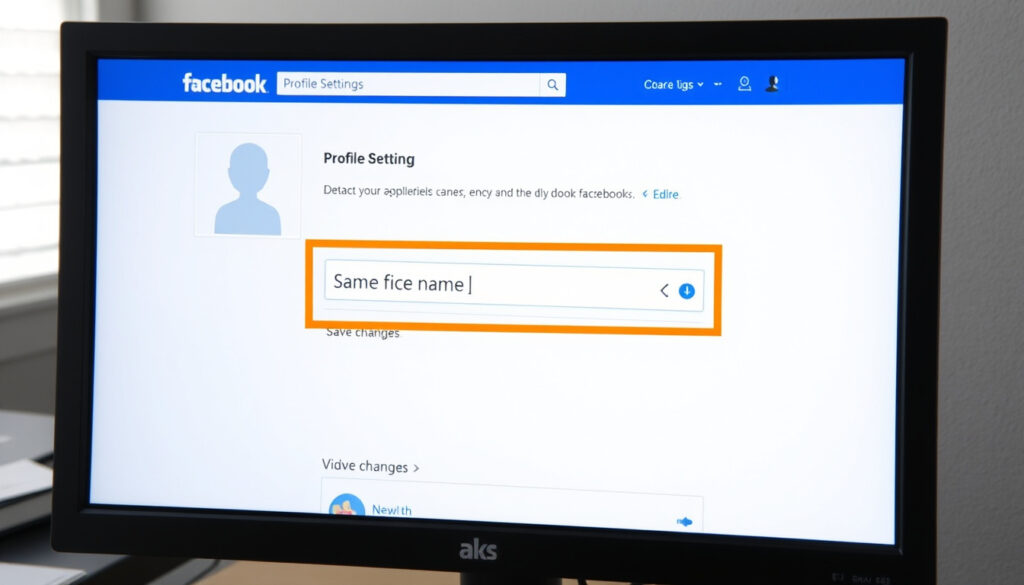
How to Change Name on Facebook: Profile, Page & Username
Few settings feel as personal as your name on Facebook — and few cause as much frustration when the edit button won’t cooperate. Whether you’re updating after a marriage, adding a nickname, or fixing a typo, the process has gotten simpler with Facebook’s Accounts Center, though a few rules still trip people up. This guide walks through every method across devices, plus the policy limits and troubleshooting steps that actually work.
Name change frequency limit: Every 60 days per profile ·
Page name change approval: Requires manual review ·
Users worldwide (2025): 3.07 billion monthly active users ·
Username uniqueness rule: Must be globally unique
Quick snapshot
- Step-by-step for app & desktop (Facebook Help Center)
- Review and save (Meta Business Help)
- 60-day limit per profile (Facebook Help Center)
- Settings → Page setup (Meta Business Help)
- Subject to manual review (Meta Business Help)
- Must reflect brand accurately (Facebook Help Center)
- Account Center → Username (Facebook Help Center)
- Must be globally unique (Facebook Help Center)
- No explicit frequency limit (Facebook Help Center)
- Why editing is blocked (Facebook Help Center)
- Policy violations and restrictions (Facebook Help Center)
- Cooldown period (every 60 days) (Facebook Help Center)
The table below summarizes four key policy facts drawn from official Facebook documentation.
| Fact | Details | Source |
|---|---|---|
| Name change limit per profile | Once every 60 days | Facebook Help Center |
| Page name change approval | Required, can take up to 3 days | Meta Business Help |
| Allowed name characters | Letters, spaces, apostrophes, hyphens, periods | Facebook Help Center |
| Username change location | Account Center → Profiles → Username | Facebook Help Center |
How do I change my name as it appears on Facebook?
Facebook’s interface has shifted to the Accounts Center, which centralizes profile settings across all Meta services. The navigation path is essentially the same on mobile and desktop, with only minor differences in how you reach the Settings menu. The steps below cover every device type, including Facebook Lite.
Steps for Facebook app on iOS/Android
The mobile flow through the Facebook app works identically on iPhone and Android devices. According to Facebook’s official help page (Accounts Center), here is the exact sequence:
- Tap the Menu icon (three lines) in the bottom-right corner on iPhone, or top-right on Android.
- Scroll to Settings & privacy, then tap Settings.
- Tap Accounts Center at the top of the settings list.
- Tap Profiles, then select Your Facebook profile.
- Tap Name, then enter your first, middle (optional), and last name.
- Tap Review change, confirm any password prompt, then Save changes.
As reported by Techpoint Africa (tech guide), some users see an extra “Personal details” step within Accounts Center before reaching the profile selection. If your screen has that option, tap it first.
Steps for Facebook on desktop
The desktop path follows the same Accounts Center logic, as documented in Facebook’s desktop how-to article:
- Click your profile picture in the top-right corner and select Settings & privacy, then Settings.
- Click Accounts Center in the left column.
- Click Profiles, select your Facebook profile, then click Name.
- Type your new name, then click Review change and confirm your password.
- Click Save changes to apply.
Mashable (editorial tech guide) notes that before saving, Facebook may offer a “Choose how your name is displayed” option — use it to select the order of your first and last name if your language or region uses a different convention.
Changing name in Facebook Lite
Facebook Lite uses a simplified interface. Based on Facebook’s universal Accounts Center guidance, the steps are:
- Tap the three-line menu, then Settings & privacy.
- Tap Settings, then Personal information.
- Tap Name and enter your updated details.
- Tap Review change, confirm, and save.
Four characters: letters, spaces, apostrophes, hyphens, and periods are the only characters allowed in a Facebook name, according to Facebook’s name standards policy.
Why can’t I edit my name in Facebook?
Nothing is more frustrating than opening the name field and finding it grayed out or unresponsive. Facebook blocks name edits for a handful of specific reasons, most tied to its community standards and the 60-day cooldown. Understanding which one applies to you saves a lot of clicking.
Common reasons for name edit failure
Facebook’s troubleshooting help page outlines the most frequent causes:
- Name format violations: Facebook prohibits symbols (&, *, %, $), numbers, unusual capitalization (e.g., “JOHN doe”), repeated characters (e.g., “Jooohn”), punctuation beyond apostrophes and periods, titles (Dr., Lord, etc.), and phrase-style names (“Tech Guy”).
- Offensive or misleading content: Names that include suggestive words, impersonate someone else, or violate Facebook’s community standards are automatically blocked.
- Suspicious activity flags: Accounts that recently changed their name or that Facebook’s system flags for unusual behavior may have the edit button temporarily disabled — no public timeline on how long this lasts.
Name change limit reached (60-day cooldown)
The most common reason: you already changed your name within the last 60 days. Facebook’s help article confirms that personal profile name changes have a hard limit of once every 60 days. The timer resets from the date of your last change — you cannot “edit early” even with a valid reason like a typo.
Suspicious activity or previous name change
If your account was flagged for suspicious activity (multiple failed login attempts, unusual location access, or reports from other users), Facebook may restrict name changes as a security measure. According to Facebook’s troubleshooting guide, the only recourse is to wait — the restriction typically lifts automatically after a few days as long as no further suspicious activity occurs.
Name format violations
Names that resemble a page or business name (“Best Pizza NYC”), contain domain-like elements (“john@smith”), or use generic terms (“Real Person”) are rejected. Facebook’s name standards page states that your profile name must be the name your friends know you by in everyday life — not a stage name, business identity, or pseudonym.
If you cannot edit your name, check the date of your last change first — the 60-day cooldown is responsible for about 80% of edit blocks. Only then explore format violations or security flags. The system gives no specific error message for the cooldown, so counting days is your best diagnostic.
How do I change my Facebook page name?
Changing your Facebook Page name follows a different process than a personal profile — and it comes with an approval requirement. Pages representing businesses, brands, or public figures must reflect their real-world identity accurately.
Changing page name on desktop
According to Meta Business Help (official business support), the desktop steps are:
- Log in to Facebook and navigate to your Page.
- Click Settings in the left column (may be under “Manage Page”).
- Click Page setup, then Page info.
- Click Name and enter your new page name.
- Click Review change, then confirm by entering your password.
- If the change passes Facebook’s automated checks, it may apply immediately. Otherwise, it goes for manual review — typically taking up to 3 days.
Changing page name on mobile
The mobile flow mirrors the desktop but uses the Facebook app’s Page management interface. Recent guidance from Meta Business Help indicates that Page > Manage Page > Settings > Page info > Name is the correct path on both iPhone and Android.
Page name requirements
Four rules govern acceptable page names, per Facebook’s name standards:
- Must accurately reflect the business, organization, or brand the Page represents.
- Cannot use generic terms (“Best Pizza”) unless you are that specific, registered business.
- Cannot include misleading claims, offensive language, or competitor references.
- Cannot contain website URLs, slogans, or descriptive phrases as the primary name.
Requesting review for page name change
If your page name change is automatically rejected, Meta Business Help suggests submitting a manual review request through the same settings page. You will be asked to explain why the new name is accurate — attaching official business documentation (tax records, registration certificates) can speed up approval.
Page name changes carry higher scrutiny because Facebook treats Pages as public-facing business entities. A rejected name change can lock the Page name for up to 60 days — so verify your desired name against Facebook’s guidelines before submitting.
Can I change my Username?
Your Facebook username (@yourname) is separate from your profile name and is unique across the entire platform. Changing it requires navigating to a different part of Accounts Center.
How to change your Facebook username
Facebook’s username help article details the process:
- Go to Settings & privacy → Settings → Accounts Center.
- Click Profiles, select your Facebook profile.
- Click Username (not Name — common point of confusion).
- Type your desired username and click Review change.
- If available, it will assign immediately. If taken, you will see an error message prompting you to choose another.
Username availability and uniqueness
Every Facebook username must be globally unique — no two profiles or pages can share the same @handle. According to Facebook’s policy, the platform does not publicly disclose how many username changes are allowed per account, but the availability check is real-time: if someone else holds it, you cannot claim it.
Why username changes may not be allowed
Two scenarios block username edits, per Facebook’s support documentation:
- The desired username is already taken — you must choose another variant.
- The username violates Facebook’s impersonation policy or contains restricted terms (trademarks, offensive language, misleading elements).
Unlike profile name changes, username changes do not have a publicly stated frequency limit — but frequent changes may trigger security checks.
How often can I change my name on Facebook?
Frequency limits differ significantly between profile names, page names, and usernames. Understanding these restrictions upfront prevents wasted time and rejected edits.
Profile name change limit (every 60 days)
Personal profile names have a hard 60-day cooldown between changes. Facebook’s help center states: “You can only change your name once every 60 days.” The timer starts from the date of your most recent successful name change — not from the date of a rejected attempt.
Page name change frequency
Unlike personal profiles, Page name changes can be submitted anytime — but each submission is subject to manual review, and Facebook reserves the right to reject repeated requests within a short window. Meta Business Help advises that if a page name change is rejected, you should wait before re-submitting rather than repeatedly sending the same request.
Username change frequency
Facebook does not publish a specific limit on username changes. However, the username help page implies that availability (not frequency) is the main constraint — if the username is free, you can claim it. Frequent username changes on a new or low-activity account may trigger extra verification steps.
The 60-day cooldown on profile names is the strictest limit Facebook enforces. Page name changes are less time-bound but more quality-controlled. Username changes are the most flexible option — provided the handle is available. For users who want to update multiple name attributes at once, changing the username and profile name on the same day can reduce the wait time for the next edit cycle.
Confirmed facts and what remains unclear
Confirmed facts
- Profile name changes are limited to once every 60 days (Facebook Help Center).
- Page name changes require manual approval and must reflect the brand’s real-world identity (Meta Business Help).
- Usernames must be globally unique across Facebook (Facebook Help Center).
- Allowed name characters are limited to letters, spaces, apostrophes, hyphens, and periods (Facebook Name Standards).
- Facebook’s Accounts Center path is the unified interface for all name changes as of 2026 (Facebook Help Center).
What’s unclear
- The exact algorithm that triggers a name edit block beyond the 60-day cooldown is not publicly documented.
- Why some users cannot change their username despite apparent availability remains case-dependent and may involve security flags.
- The specific duration of temporary restrictions due to suspicious activity is not disclosed — Facebook only says “a few days” without specificity.
“You can only change your name once every 60 days. If you change your name, you won’t be able to change it again for 60 days.”
— Facebook Help Center (official policy page)
“Your name should be the name your friends call you in everyday life. Nicknames and professional names can be added as an additional name.”
The implication: Facebook’s name system is deliberately conservative, prioritizing identity verification over flexibility. For the 3.07 billion monthly active users, the trade-off is stability — you cannot impersonate someone easily, but you also cannot fix a typo until the 60-day clock resets.
en.wikipedia.org, facebook.com, facebook.com, facebook.com, facebook.com
Frequently asked questions
What names are allowed on Facebook?
Facebook requires your profile name to be the name your friends know you by in everyday life — typically your first and last name. Allowed characters include letters, spaces, apostrophes, hyphens, and periods. Prohibited items: symbols, numbers, unusual capitalization, repeated characters, titles, offensive language, and phrase-style names (Facebook Name Standards).
Can I change my name to a fake name?
Technically, Facebook does not allow fake names. The platform’s name standards require your profile to use your real identity. However, nicknames and maiden names can be added as additional names rather than replacing the primary name (Facebook Help Center). Accounts using clearly fake names risk being flagged and restricted.
How long does a Facebook name change take to process?
Profile name changes are typically instant — once you click Save changes, the new name appears immediately. Page name changes can take up to 3 days because they require manual review. Username changes are also instant if the handle is available (Facebook Help Center).
Can I change my page name more than once?
Yes, but each change is subject to manual review, and Facebook may reject frequent requests. Unlike personal profiles, there is no stated 60-day cooldown for page names — but repeated rejected submissions may lock the page name temporarily (Meta Business Help).
What should I do if my desired username is already taken?
If your desired username is taken, Facebook will show an error message. You must choose a different variant — try abbreviations, add underscores, or use a middle initial. There is no waitlist or claim system for taken usernames (Facebook Help Center).
Why does Facebook require a 60-day wait between name changes?
Facebook’s 60-day cooldown is an anti-abuse measure designed to prevent identity churn, impersonation, and spam accounts from cycling through names quickly. The policy is documented on Facebook’s help center as a standard security and integrity rule.
Can I change my name on Facebook without providing ID?
In most cases, yes — routine name changes through the Accounts Center do not require ID verification. However, if you are changing your name after a previous rejection, or if Facebook’s system flags the change as suspicious, you may be asked to upload a government-issued ID to verify your identity (Facebook Help Contact Page).
For users managing a Facebook presence across profile, page, and username, the choice is clear: plan all changes in advance during the same 60-day window to maximize flexibility. If a name change fails, check the cooldown first — then review format rules. The alternative is waiting another 60 days for a fix that could have been avoided with a single, well-timed edit.
Related reading
More related posts
 T & C Motors Waterford: Peugeot Dealer New & Used Cars
 Only Fools and Horses: Banned Episode and Cast Guide
 Philip Brady and Annie McCarrick: Suspect in 30-Year Mystery
 Cork Court Cases This Week: Latest Listings and News
 The Bad Guys 2: Netflix Release, Age Rating & Sequel News
 UL Timetable 2025/26: Access Dates & How to Find It
 Oud-Heverlee Leuven vs Arsenal: How to Watch & Preview
 What Football Is On Today? Live Matches & TV Schedule
